Bridge with the Startale App
The Startale App is Soneium's super app: one place to manage your assets, discover apps, earn and take part across the ecosystem. Its built-in bridge brings funds from other networks to your account on Soneium, without choosing a bridge or a route yourself, and it covers the bridge fees and the gas once you arrive.
This guide covers how deposits work, how to deposit from another network or an exchange, and how to buy ETH with a card.
How it works
Your account in the app is a Startale Account, an ERC-4337 smart account on Soneium. When you choose Bridge to Soneium, the app gives you a deposit address for the network and token you pick. Funds sent to that address are bridged and credited to your Startale Account on Soneium automatically, through Rhinestone.
| Source networks | Ethereum, Solana, Base, Arbitrum, OP, Polygon, BNB Chain, Plasma, Gnosis, Sonic, Monad, Unichain, Katana and HyperEVM |
| Tokens | Depend on the network you pick, for example ETH, USDC and USDT0 on OP |
| Minimum deposit | $10 |
| Arrival time | Usually a few seconds to a few minutes |
| Fees | No bridge fees: they are covered by Startale. You only pay gas on the network you send from. These rules can change over time. |
Transactions from your Startale Account on Soneium are gas-free, so you can use your funds as soon as they land, without holding ETH. Gas sponsorship is a service operated by Startale and its rules can change over time.
Deposit to Soneium
From another network
Use this route when your funds are in a self-custodial wallet, such as MetaMask, Phantom or Rabby, on one of the supported networks.
-
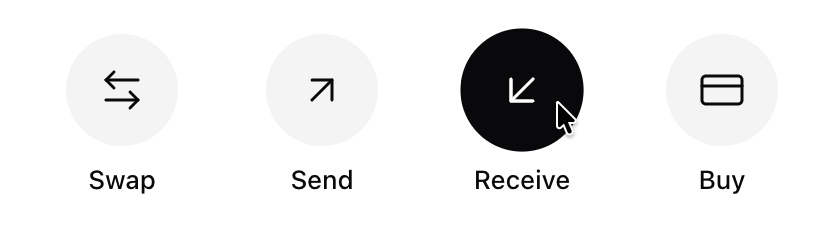
Open Receive. On the home screen of the Startale App, select Receive.
-
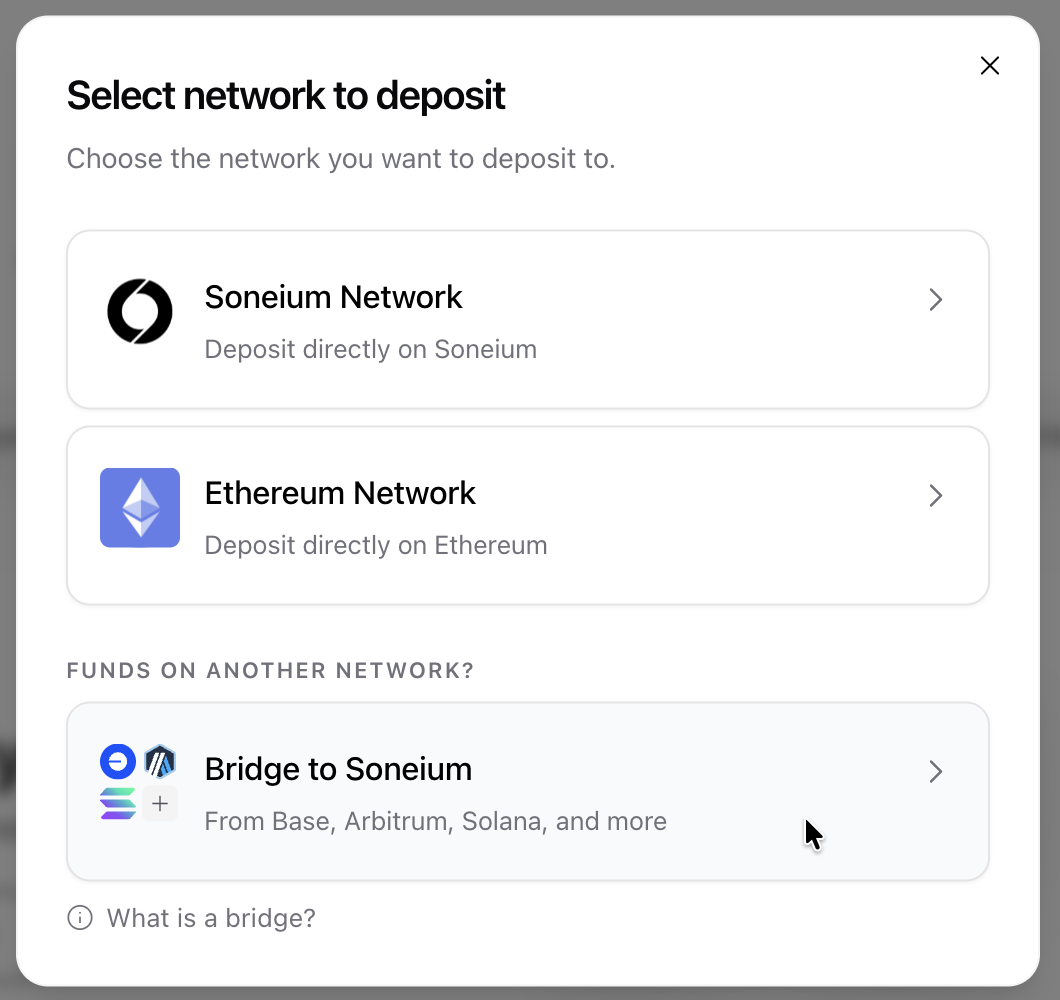
Choose Bridge to Soneium. It is listed under Funds on another network?
-
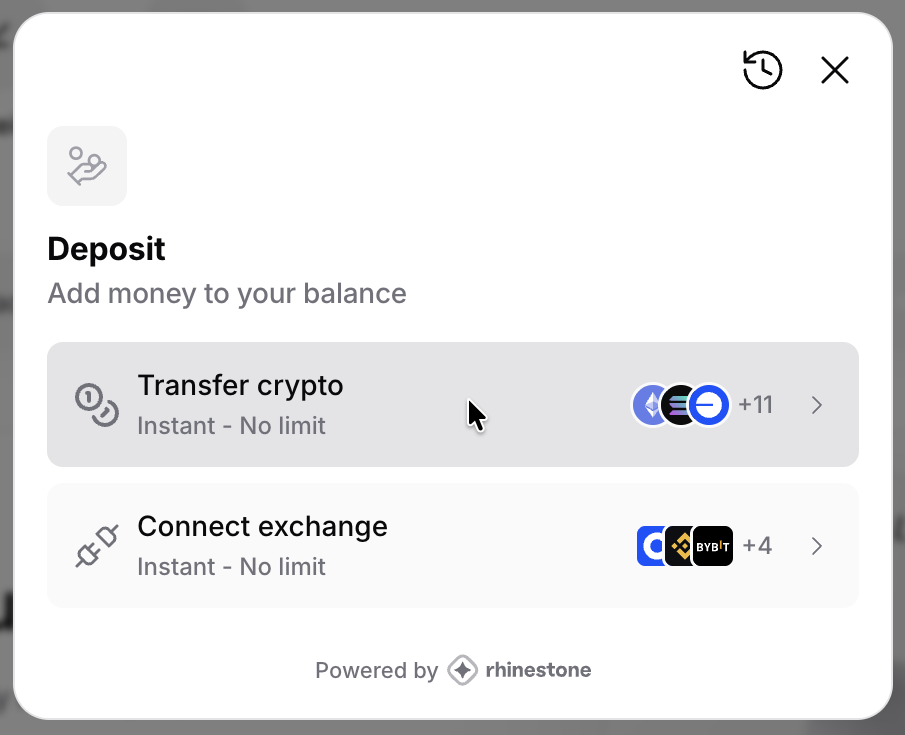
Select Transfer crypto.
-
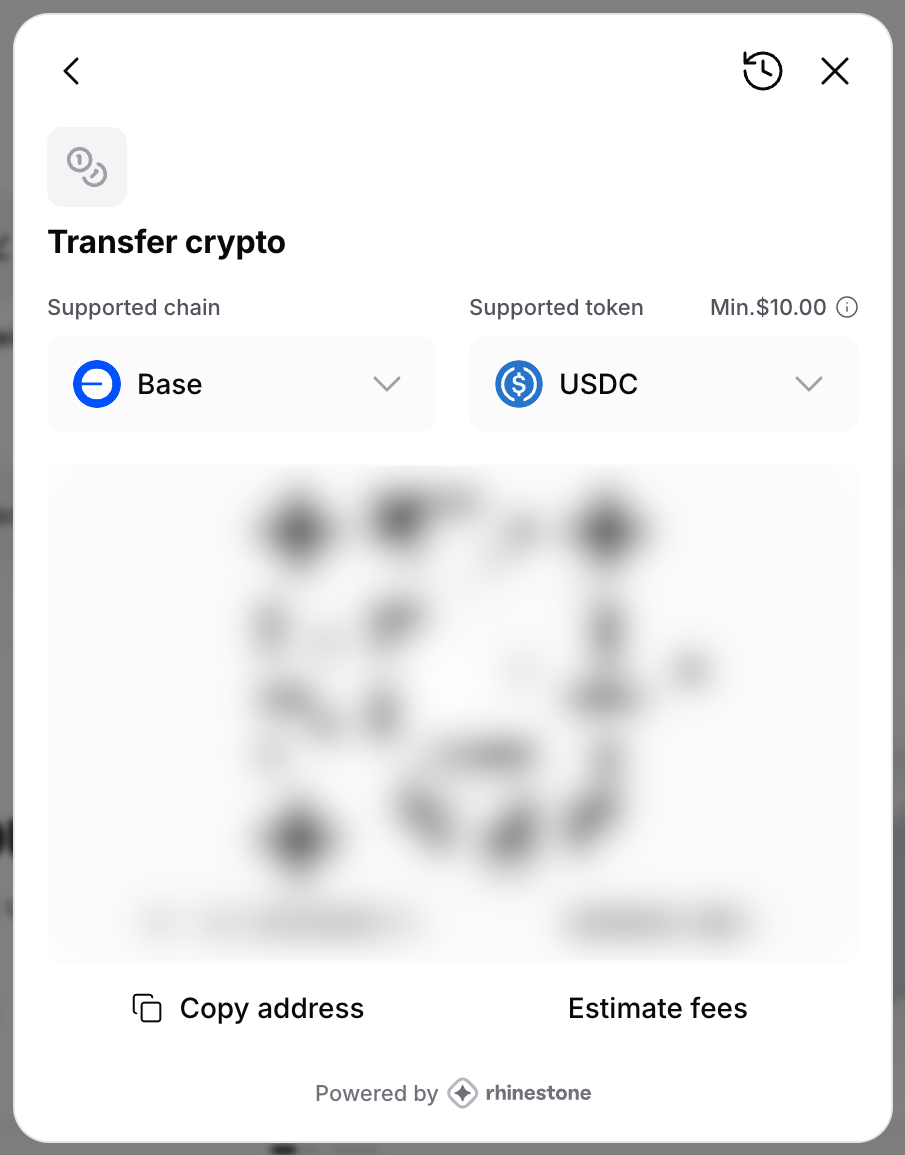
Pick the network and token you are sending from. Under Supported chain, choose the network your funds are on now. Under Supported token, choose the token. The minimum amount is shown next to the token.
-
Copy the deposit address. Select Copy address, or scan the QR code with your mobile wallet. The address matches the network and token you picked in step 4.
-
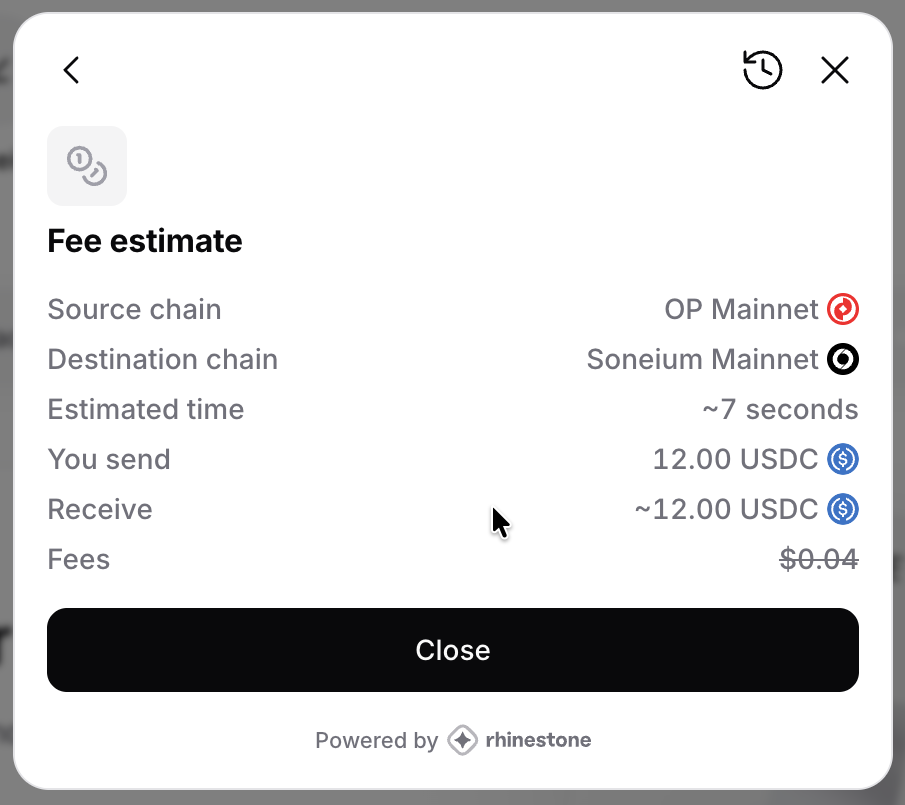
Check the fees (optional). Select Estimate fees, enter the amount, and select Continue. The estimate shows the arrival time and the amount you will receive. Fees shown with a strikethrough are covered by Startale.
-
Send the funds from your wallet. Make sure your wallet is on the same network you picked in step 4, then send the token to the deposit address. Your balance on Soneium updates as soon as the transfer lands.
Each deposit address matches the network and token you picked. Sending another token, or the same token on another network, can leave your funds stuck. Do not send funds to your Startale Account address on another network: always use the deposit address from Transfer crypto.
USDC deposits arrive in your balance as USDC.e, the bridged USDC used on Soneium.
Watch the full deposit flow:
From an exchange
You can withdraw from an exchange, such as Coinbase, Binance or Bybit, straight to your Startale Account. The route depends on whether your exchange supports withdrawals on Soneium.
If your exchange supports Soneium, withdraw to your Startale Account address directly:
- In the Startale App, select Receive, then Soneium Network, and copy your address.
- On your exchange, start a withdrawal, choose Soneium as the network, paste the address and confirm.
If it does not, withdraw to a deposit address on a network your exchange supports:
- On your exchange, open the withdrawal screen for your token and check which networks it offers.
- In the Startale App, select Receive > Bridge to Soneium > Connect exchange, and continue the deposit process from that screen.
- That’s it! Your deposit should be credited within a few minutes.
Withdraw a small amount first, and keep the withdrawal at or above the $10 minimum. Exchange withdrawals cannot be cancelled once sent, and a network mismatch between the exchange and the deposit address is the most common cause of stuck deposits.
Buy ETH with a card
You can buy ETH with a credit or debit card, Apple Pay, Google Pay or a wire transfer, and receive it in your Startale Account on Soneium. Purchases are handled by Transak.
Card purchases are not available in every country. Transak checks your location and decides which currencies and payment methods you can use. If Buy is not available to you, deposit from an exchange instead.
-
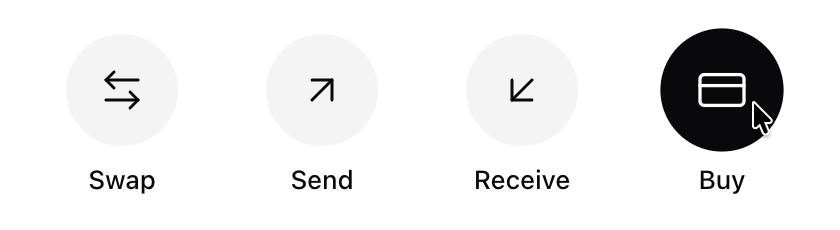
Open Buy. On the home screen, select Buy.
-
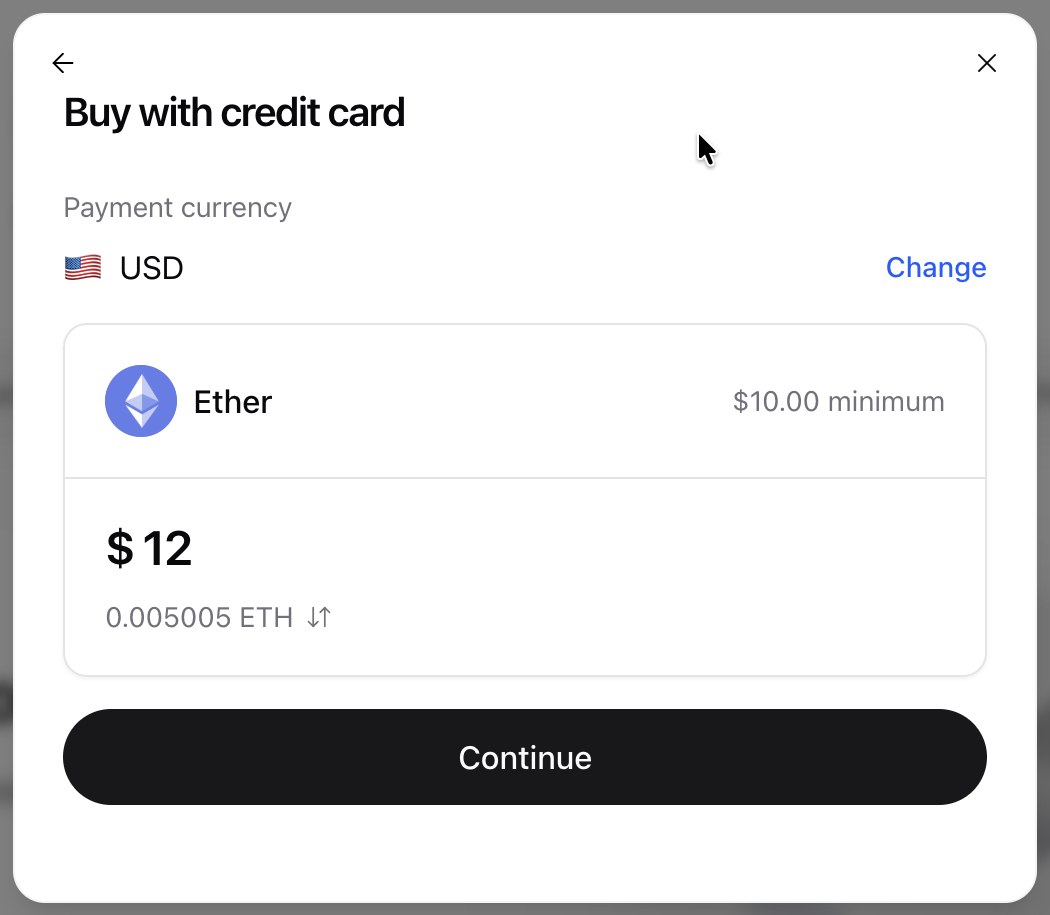
Enter the amount. The minimum is $10. The ETH you will receive is shown below the amount.
-
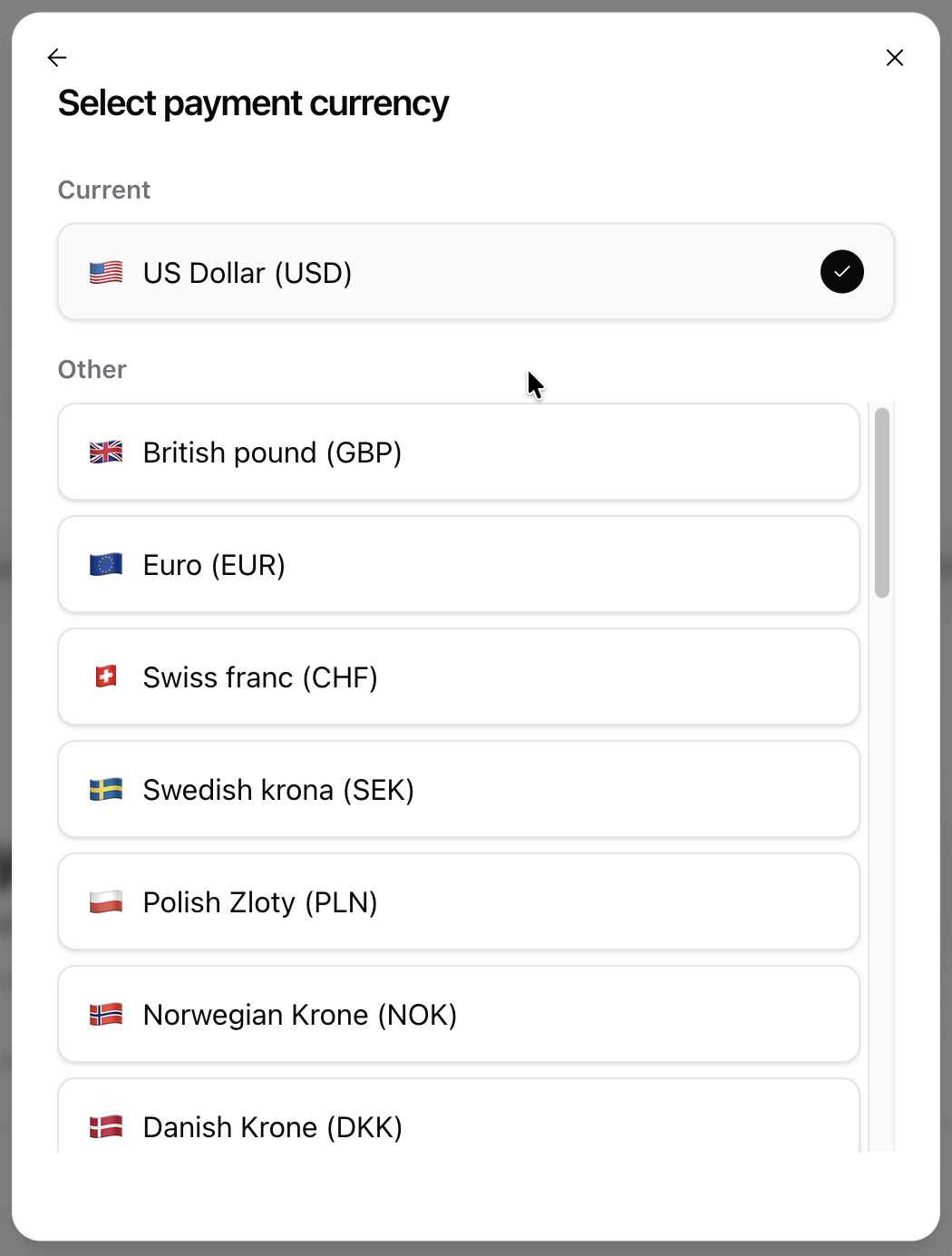
Choose your payment currency (optional). Select Change next to the currency and pick yours from the list.
-
Select Continue and choose a payment method. Transak opens with the amount you pay, the ETH you receive and the destination, Soneium Network. Apple Pay, card payments and Google Pay take 1 to 3 minutes. Wire transfers take 1 to 2 days.
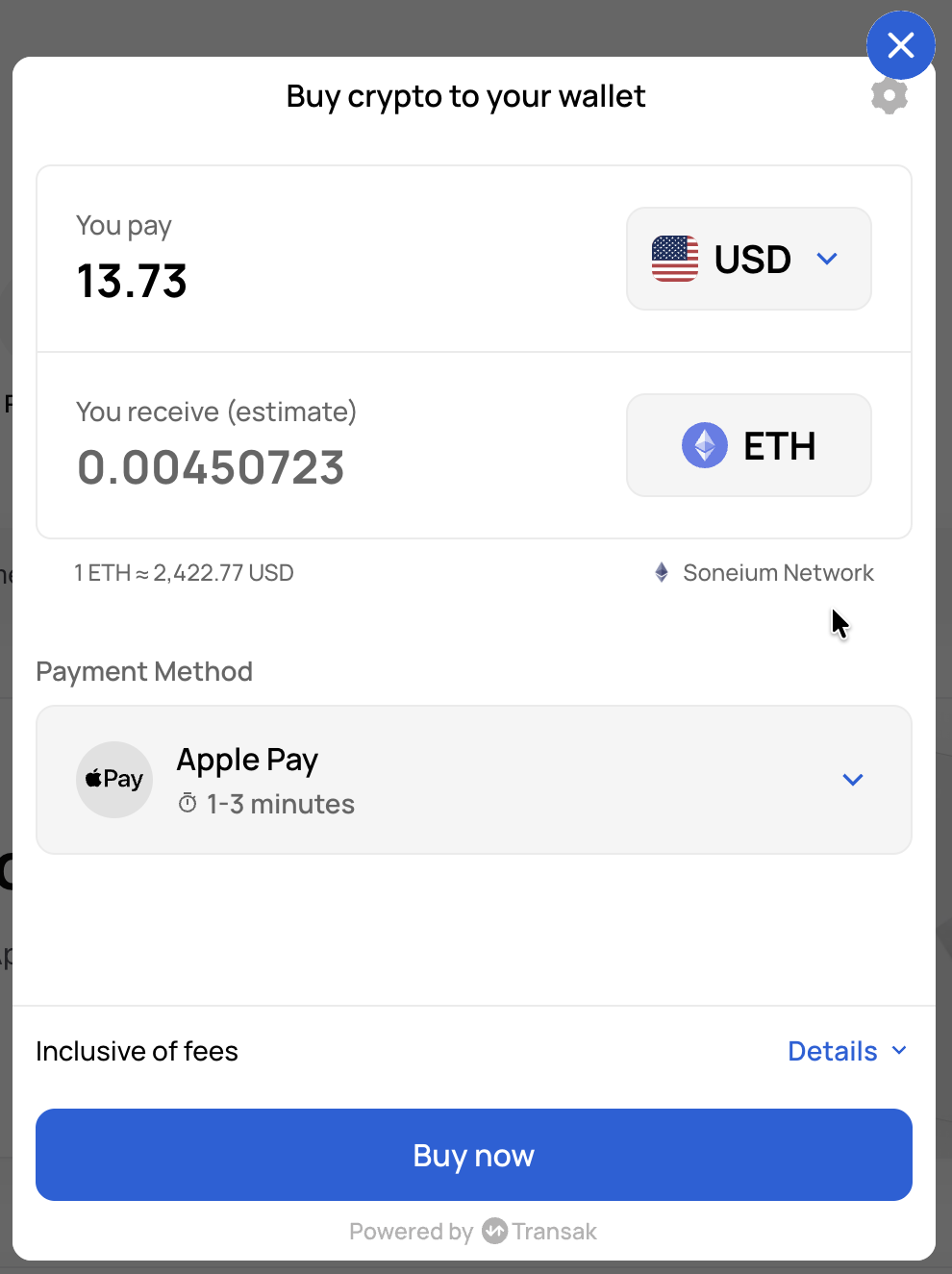
-
Review the fees. Select Details next to Inclusive of fees to see the Transak and third-party fees included in the total.
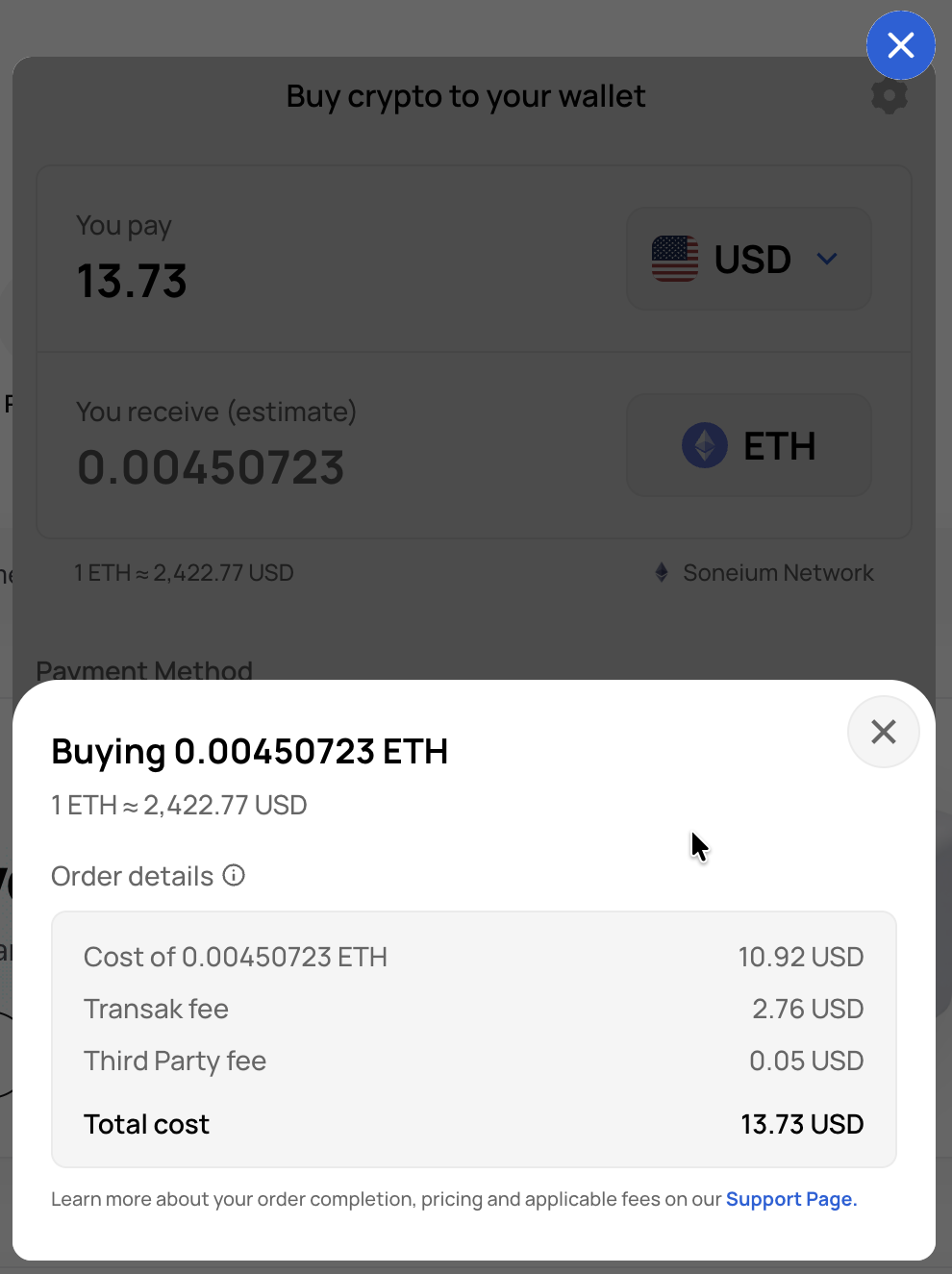
-
Select Buy now and sign in to Transak. Enter your email to receive a verification code. The first time you buy, Transak also asks you to verify your identity (KYC). Once the payment completes, the ETH is delivered to your Startale Account on Soneium.
Watch the full purchase flow:
Troubleshooting
- My deposit has not arrived: Open Receive > Bridge to Soneium and select the history icon at the top of the window. It shows where each deposit is in the process.
- I sent an unsupported token or used the wrong network: Contact Startale App support with your transaction hash, so the team can trace the transfer.
- I deposited USDC but cannot find it: USDC arrives as USDC.e. Look for USDC.e in your balance.
- The Buy option is not available to me: Card purchases depend on your country. Deposit from an exchange or from another network instead.