Bridge with Stargate
Stargate is a cross-chain bridge built on LayerZero. It connects Soneium with networks beyond the OP ecosystem, such as Arbitrum, BNB Chain and Polygon, and is a good fit for moving stablecoins.
This guide covers which tokens you receive and how to deposit to Soneium.
How it works
You pick the token you hold and the token you want on Soneium, and Stargate finds a route between them. Fees, the arrival time and the amount you receive are shown before you confirm.
| Source networks | Every network Stargate connects, such as Base, Arbitrum, BNB Chain and Polygon |
| Assets | ETH, USDC, USDT0 and other supported tokens |
| Arrival time | Usually about a minute |
| Fees | A total route fee, plus gas on the network you send from |
Some tokens change name when they arrive on Soneium:
| You send | You receive | Contract address on Soneium |
|---|---|---|
| ETH | ETH | Native token |
| USDC | USDC.e | 0xbA9986D2381edf1DA03B0B9c1f8b00dc4AacC369 |
| USDT0 | USDT0 | 0x102d758f688a4C1C5a80b116bD945d4455460282 |
You need a wallet with Soneium added, such as MetaMask (see Wallets), and gas on the network you send from. If you only bridge stablecoins, keep a little ETH on Soneium too, so you can use them once they arrive.
Deposit to Soneium
The example below bridges USDC from Base to USDC.e on Soneium.
-
Open Stargate. Go to stargate.finance/bridge, stay on the Transfer tab and select Connect Wallet.
-
Choose the source token. In the top selector, choose the token you hold and its network, for example USDC on Base.
-
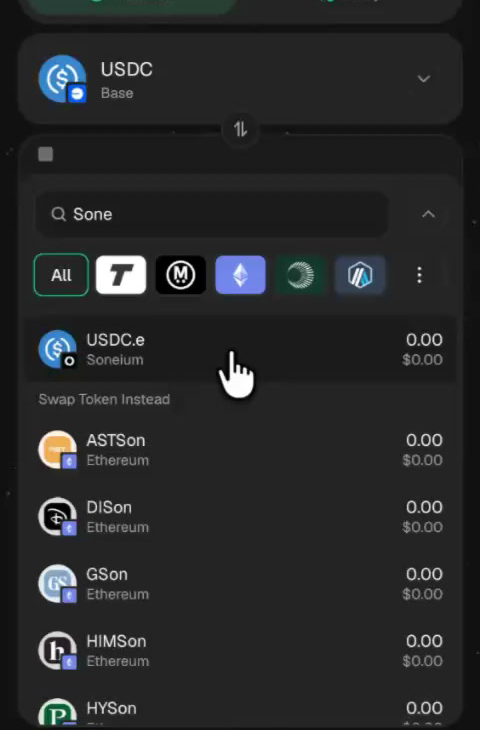
Choose the destination token. In the bottom selector, search for Soneium and select the token you want to receive, for example USDC.e on Soneium.
-
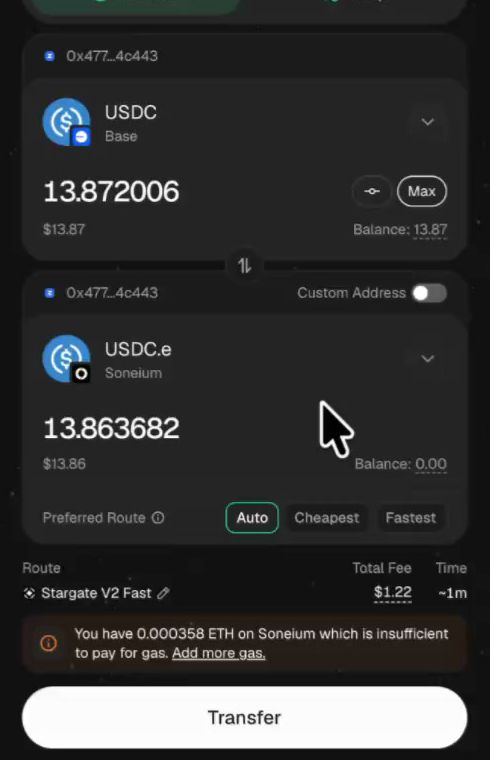
Enter the amount. Type it, or select Max. Stargate shows the amount you will receive on Soneium.
-
Check the route. Under Preferred Route, keep Auto or choose Cheapest or Fastest. The route shows the Total Fee and the estimated time. If your ETH on Soneium isn't enough to pay for gas, Stargate shows a warning: select Add more gas to receive some ETH along with your tokens.
-
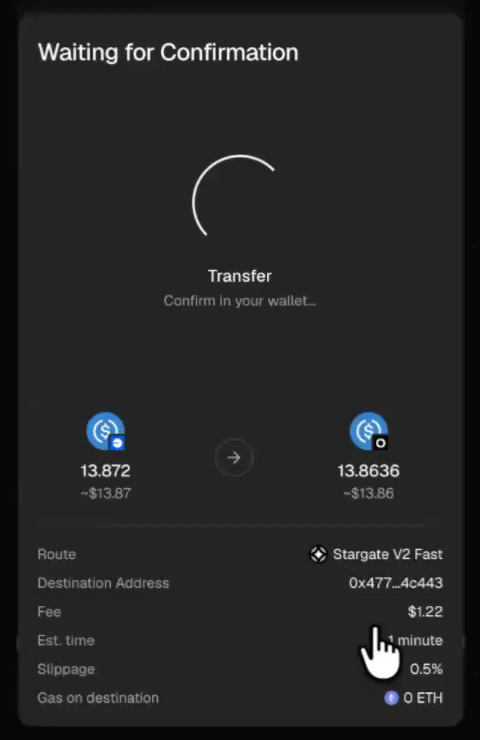
Transfer. Select Transfer and confirm in your wallet. While you sign, Stargate shows the route, destination address, fee, estimated time, slippage and gas on destination. ERC-20 tokens may need an approval transaction first.
-
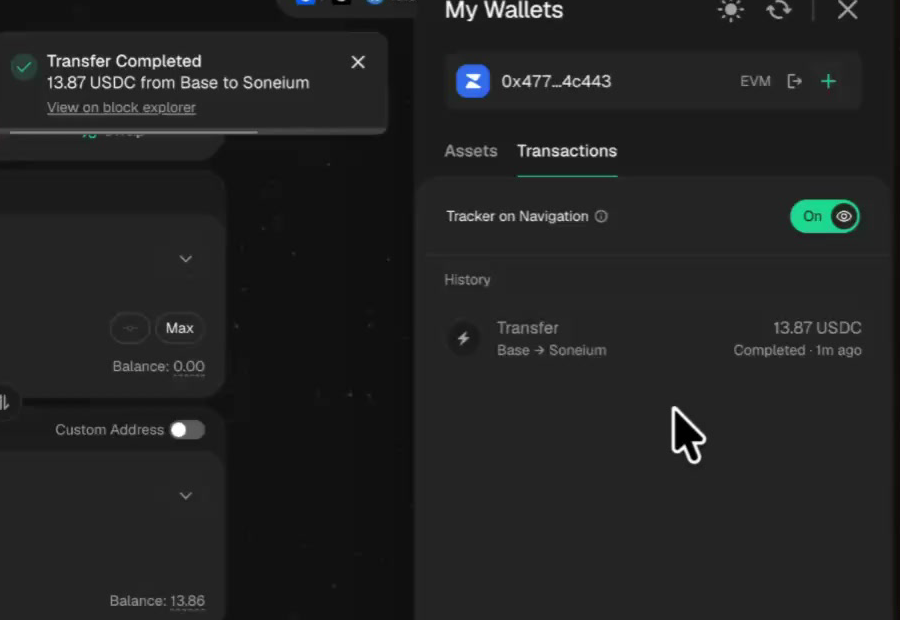
Track the transfer. Stargate shows Transfer Submitted, then Transfer Completed once the funds arrive on Soneium. Your transfers are also listed under Transactions in the wallet panel.
By default, funds arrive at the same address on Soneium. To send them to a different wallet, turn on Custom Address and enter the recipient. Make sure that wallet supports Soneium.
Watch the full deposit flow:
Troubleshooting
- My transfer is taking longer than expected: Select View on block explorer in the Stargate notification, or look up the transaction hash from the network you sent from on LayerZero Scan.
- The tokens arrived but my wallet doesn't show them: Switch your wallet to Soneium. If they still don't appear, import the token with its contract address from the table above.
- I can't use my tokens on Soneium: You need ETH on Soneium for gas. Bridge a small amount of ETH, or select Add more gas on your next transfer.
- Something else: The Stargate documentation covers fees, routes and supported networks in more depth.